
-
4.
Pairing device with screen
There are two ways to pair a screen with a device. These are primarily ment for two different scenarios:
-
4.1
Bibliotheca supplied hardware
The hardware supplied by Bibliotheca is produced with a preinstalled image. This image already contains the uniFi+ Software.
A technician or project manager can then register each device by entering either the Serial Number or the MAC-address of the hardware, without having to unwrap it or turning it on.
Devices are registered by creating the screen. Enter the information in the application creator/control panel under device settings.
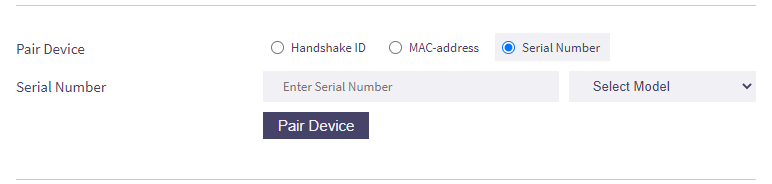
Once the device is running (and online), it will find the matching device on the uniFi+ server, and the pairing will be confirmed.
-
4.2
Custom hardware
On hardware not supplied by bibliotheca the software is installed on location. See Install software on device
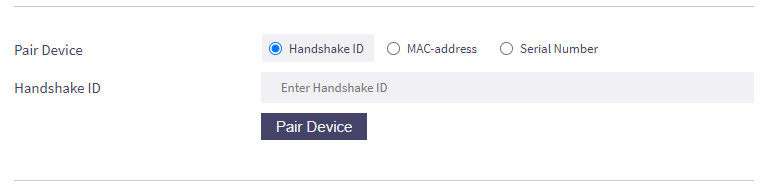
When running the software (with connection to internet) the device will register itself on the uniFi+ server with a Handshake ID.
Until this Handshake ID has been submitted to an application, the device will appear in the Pending list in the hardware section.
Once submitted in the Application Control Panel, and the device is running the software in online state, the pairing will be confirmed.
-
4.3
Multi application pairing (screenSaver, promotion & activ directed)
Overview:
A single device can be paired with multiple uniFi+ screens simultaneously, including:
- ScreenSaver (uniFi+ idle)
- Promotion (uniFi+ embed)
- Wayfinding content (uniFi+ activ directed)
This setup allows kiosks (quickConnects) to:
- Display separate promotional content within the quickConnect interface.
- Show screensaver content during period of inactivity
- Show Wayfinding content when activated via quickConnect.
Steps to Pair Applications
-
Initial Pairing
- Begin by pairing a primary screen (screensaver, promotion, or activ directed) to the device using one of the following methods:
- MAC Address
- Handshake ID
- Serial Number
- Once this pairing is successful, proceed to add a secondary screen.
- Begin by pairing a primary screen (screensaver, promotion, or activ directed) to the device using one of the following methods:
-
Adding a Secondary Screen
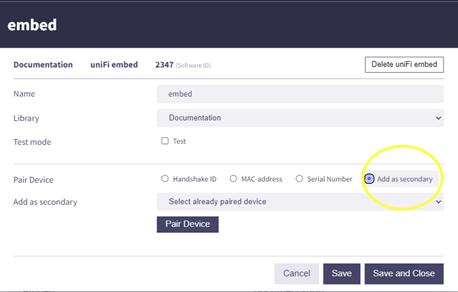
- Select the second screen you wish to pair. For example, you might want to pair an activ directed screen to a device already running embed or idle.
- Open the application modal and choose the Add as Secondary option:
-
Selecting a Compatible Pair
- You will see a list of valid screens or combinations already paired to a device. Compatibility is determined by the following rules:
- The screen is on the same branch as the selected application.
- It is already paired with a device.
- The secondary application's type differs from the currently selected application.
- You will see a list of valid screens or combinations already paired to a device. Compatibility is determined by the following rules:
-
Finalizing the Pairing
- Select the desired option from the list and click Save.
- The screens will now be successfully paired with the same device.
-
4.4
Unpairing
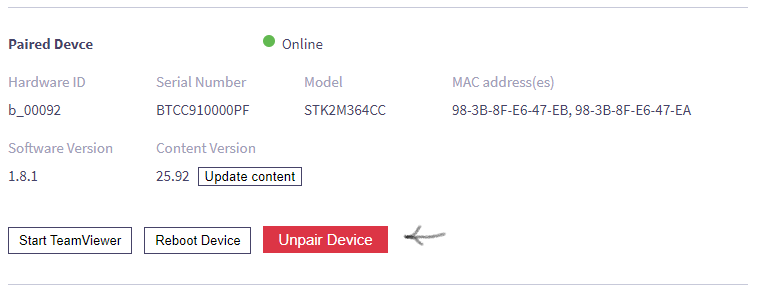
It's possible to unpair a screen with it's current device.
This can be convenient in cases where the hardware is broken and the application must be moved to a new device. Or if the device has accidently been paired to the wrong application. Unpairing and re-pairing will ensure that the exact same content is shown on the new device.Click the unpair-button in the Application Control Panel
-
4.1