
-
1.
The System Overview
-
1.1
uniFi Server
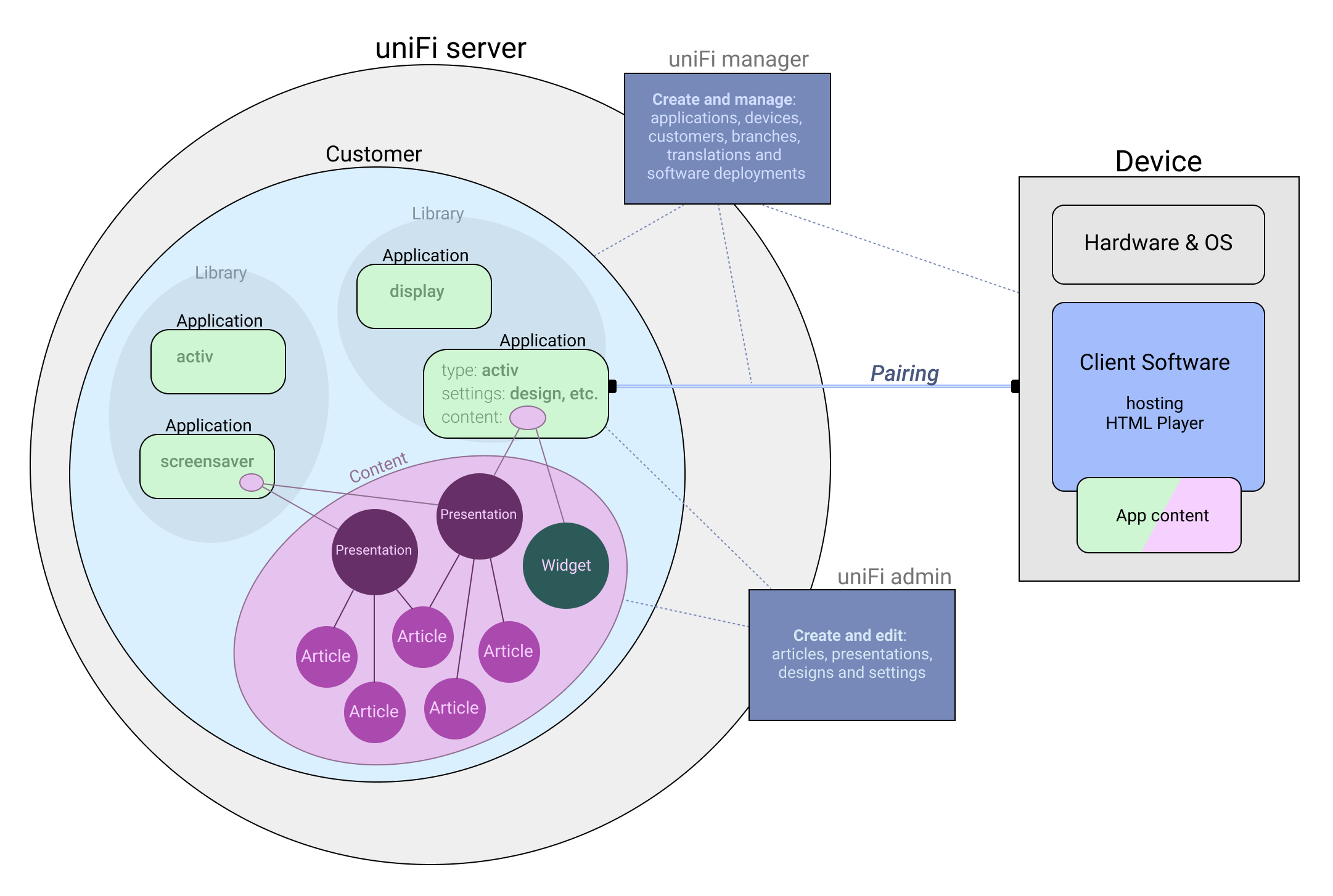
The uniFi server has multiple functions:
- It holds all content created by authors or library staff.
- It holds all data about customers, applications and devices managed by Bibliotheca technicians and developers.
- It hosts the content management sites: uniFi admin (authors/library staff) and uniFi manager (Bibliotheca techs)
- It serves application content to all devices located in the Libraries via the API
-
1.1.1
Application (screen)
Today a screen can be one of five different types: uniFi+ activ (formerly known as touchWall), uniFi active directed (for WayFinding on quickConnect), uniFi display (formerly known as infoWall), uniFi embed (for showing uniFi content on quickConnect start screen) or uniFi idle (for showing screensaver on quickConnect and cloudCheck tablet).
A screen can be regarded as a unique container of content with specific display settings, all compliant with the type of the screen.
Screens are created in the uniFi manager, where they are mapped to a Customer and a Library (branch). Furthermore the screen can be paired with a device - a piece of physical hardware (PC, Google Chromecast device, cloudCheck tablet) located at the customer (or at Bibliotheca for testing).
Screens that are not paired with a device are called virtual screens. These are mostly used for development and testing, but they are also handy for demonstrating anything from a single feature to a fullblown application to new customers, before they buy.
When a screen has been created, the customer can see it in the Screens section of uniFi admin site, and they can now add content (articles, presentations, widgets, collections) to it, and change its design. If it is paired with a device which is connected to the internet, the admin user can moreover push the newest application content out on the physical screen of the device. More here.
-
1.1.2
Content
Content on the uniFi+ server refers to raw author created content such as articles, presentations and widgets. A presentation is basically a collection of articles, and each type of presentation will display its articles in its own specialized way. Widgets contain a specialised form of content, e.g. the Weather Widget. Contents are created in the Admin site - a manual on Admin is found at the user-facing helpsite here: http://help.unifilibrary.com/
-
1.2
Device
A device is a term that unifies a piece of hardware including its OS, the uniFi software installed, and the content used by the uniFi software. Basically it is a device of any type or provider located at the Library. The installed software will fetch and show the attached content on the screen connected to the device.
-
1.2.1
Hardware
Hardware types supplied by bibliotheca:
- Asus NUC 14 Pro (uniFi display, uniFi activ) https://www.asus.com/displays-desktops/nucs/nuc-mini-pcs/asus-nuc-14-pro/
- Untill out of stock: Asus NUC 12 pro
Legacy hardware types we no longer supply:
- Intel BRIX (uniFi display, uniFi activ) https://www.gigabyte.com/Mini-PcBarebone
- Intel Stick PC (uniFi display) https://www.intel.com/content/www/us/en/products/boards-kits/compute-stick.html
Furthermore the uniFi idle can be installed on any bibliotheca-provided kiosk.
uniFi display is available in Google TV App store. The official supported devices are Google TV Streamer as well as Walmarts Onn Google TV streaming devices (US only). The customer can easily buy, setup and connect the TV streaming device to their physical screen at the library.Customers are allowed to provide their own PC hardware, as long as it meets the minimum requirements:
- Windows 7 or later installed
- i5 processor
- 8Gb RAM
- 20Gb free harddisk space (could be more, depending on how much media content the customer plans to display on the screen)
- Asus NUC 14 Pro (uniFi display, uniFi activ) https://www.asus.com/displays-desktops/nucs/nuc-mini-pcs/asus-nuc-14-pro/
-
1.2.2
Software
On the device we install the software that does the following:
- Checking its device state from the cloud - is it paired with an application, and is thus allowed to start?
- Downloads the application content from uniFi Server. The content is physically stored in a folder on the device. This procedure ensures the content is available even in case of network issues.
- Displays the content interface on screen.
- By every restart of the software (usually every morning) it looks for content updates and downloads it to the content folder. If any "old" content is locally available this is shown until the new content has been fully downloaded and is ready to display.
- It is also at restart the software checks for any new software version available
- Continuously listening to commands given from uniFi Manager or Admin site (e.g. Update Content, or Restart Computer).
-
1.2.3
Application content
Content - downloaded to the device - is a combined bundle of application settings and design, and the content (articles, presentations, widgets and media) attached to the given application on the uniFi server.
-
1.2.1
-
1.1